
Sign In
Upon accessing the application, you will be greeted with the sign in screen. Make sure to sign in using the same email address you used when renting your unit. If you are unsure of the email address you used, or if you receive an error, please contact your facility to confirm the email on file.
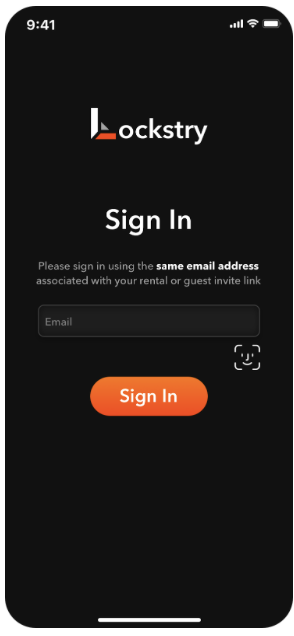
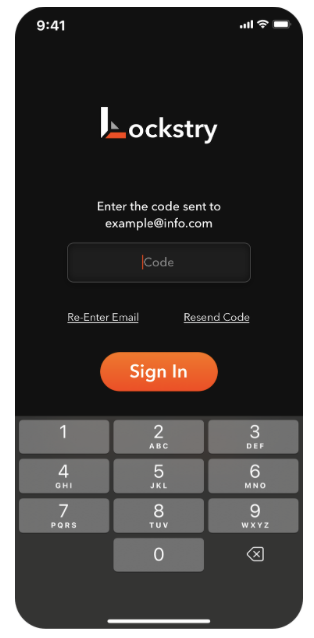
One-Time Code (for first sign in or if Bio Auth is not enabled)
After inputting your email address, a one-time code will be sent to the email. If you incorrectly entered the email address, press “Re-Enter Email”. If your code has expired or did not arrive, press “Resend Code”.
Bio Auth (after first sign in)
Upon subsequent logins, if you enabled bio auth, you can proceed with either FaceID or TouchID without the need to use a one-time email code. You can enable or disable bio-auth at any time in the app by navigating to Settings → Account → Enable Bio Auth.
Tutorial (first sign in)
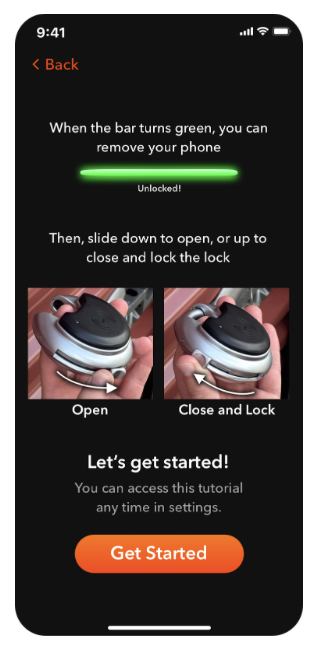
Upon entering the code, if it’s your first time accessing the app, you will be sent to the Lock Tutorial. This shows best practices for interacting with your smart lock. This tutorial can be accessed again at any time by navigating to Settings → Lock Tutorial.
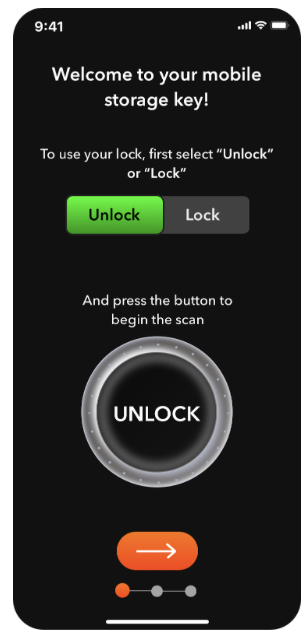
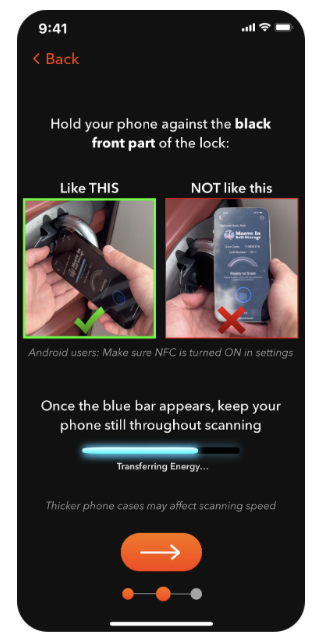
For more information on how to use your lock, see Lock Access.