
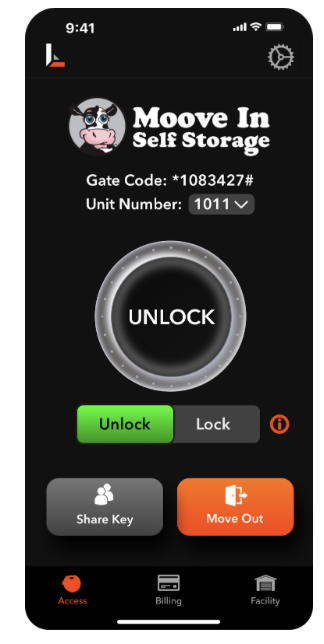
After signing in, you will be sent to the Access screen. This screen will show your gate code and your unit number. If you have multiple units, you can switch between them by pressing the unit number dropdown. From the Access screen, you can also press Share Key or Move Out.
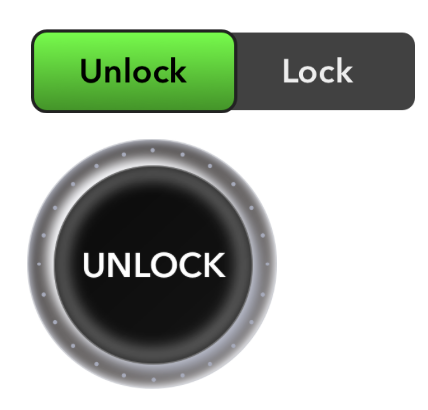
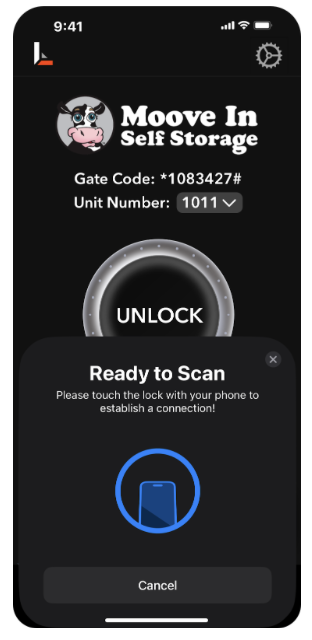
To use your lock, first make sure Unlock or Lock is selected and highlighted on the toggle switch below the circle button. Then, press the circle button and follow the NFC scanning instructions.
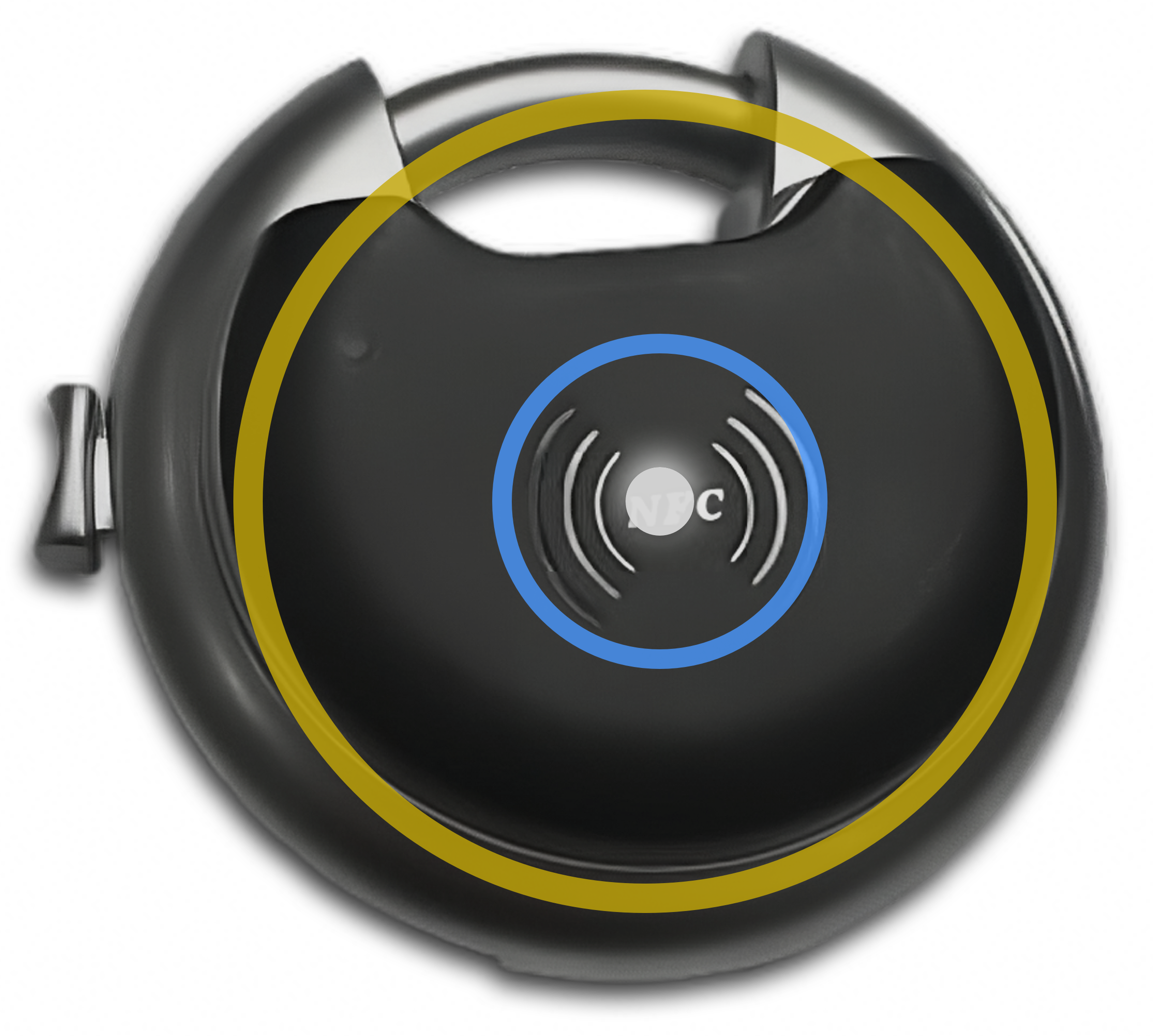
After pressing the circle button, place the back of your phone directly against the black plastic front of the lock, making sure the guiding circle on-screen is aligned with the center of the lock.
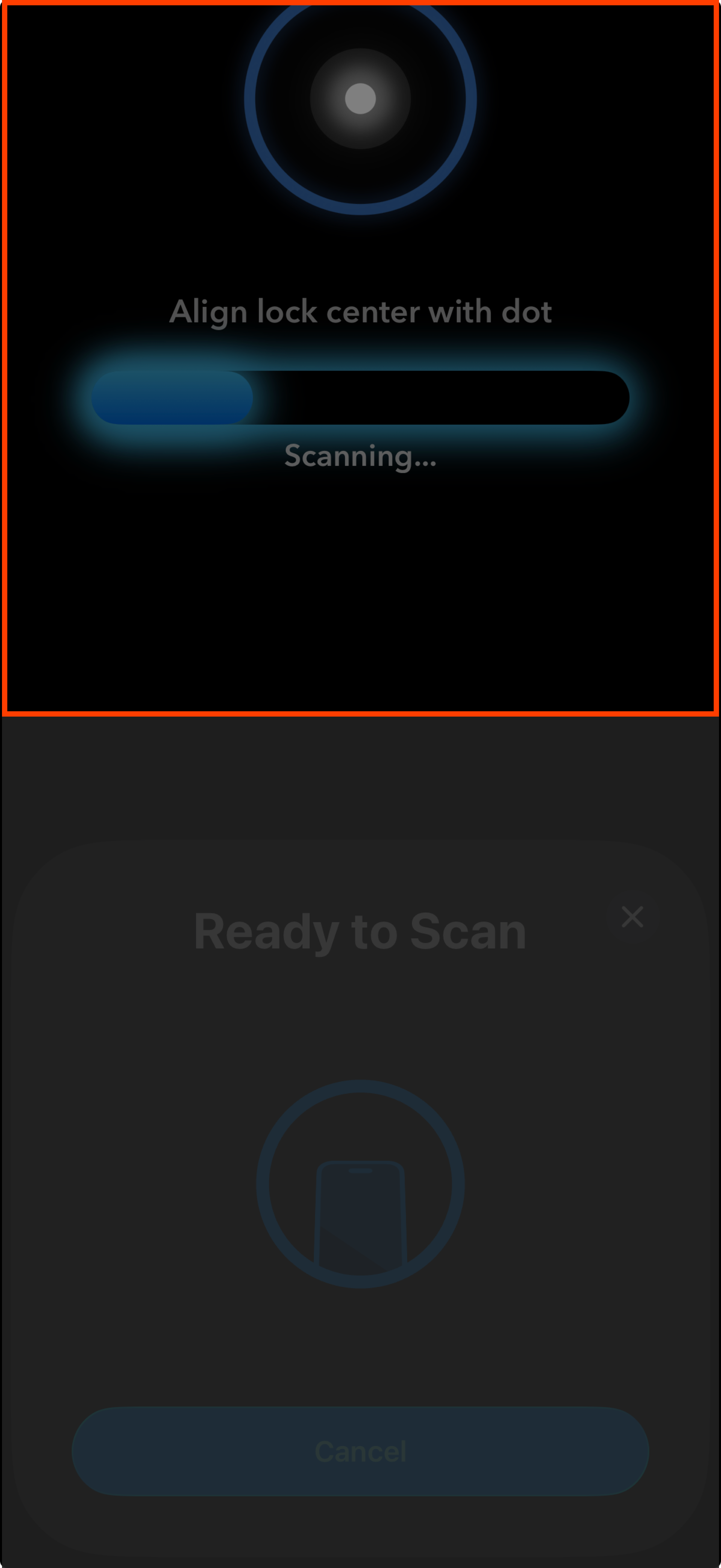
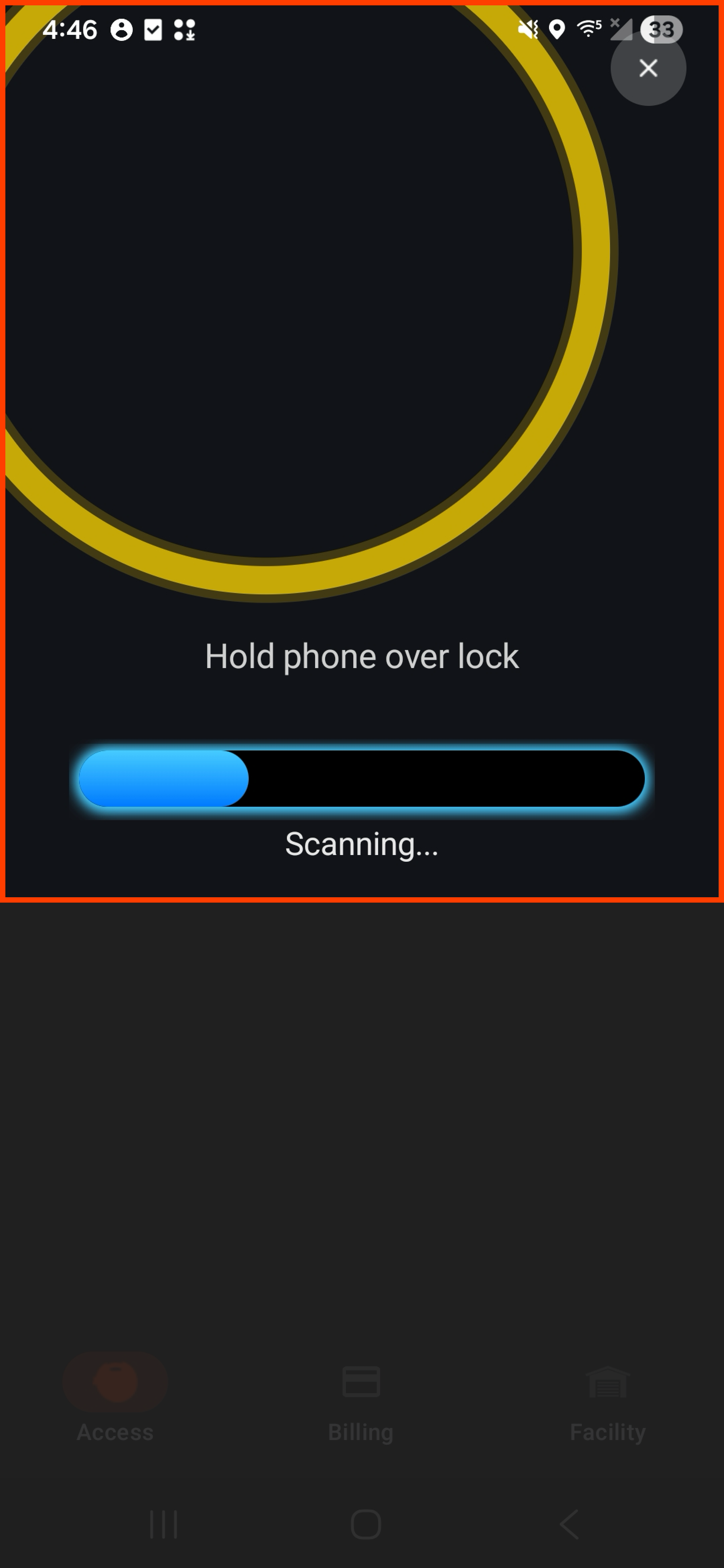
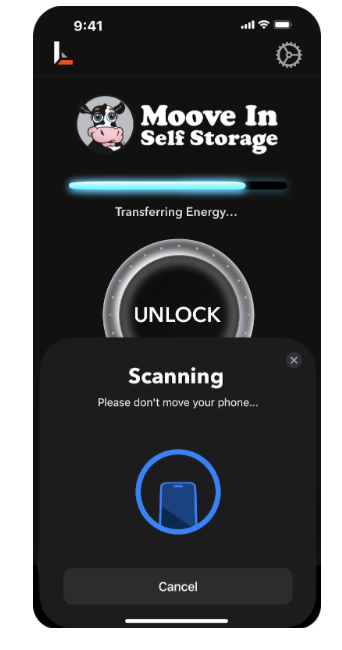
Once you've connected with the lock, you'll see the blue progress bar jump and start to charge the lock. If you do not see this, try moving your phone until your device's NFC detection area connects with the lock.
Hold your phone still against the lock while this progress bar fills, until you see the success message. During scanning, expect to hold your phone still against the lock for several seconds.
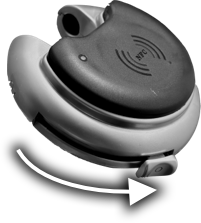
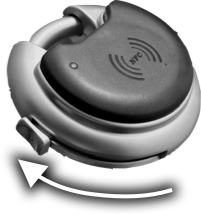
Once you see the success message, you can remove your phone. Slide down on the metal slider to open the lock after an unlocking scan, or up on the slider after a locking scan to close the lock.
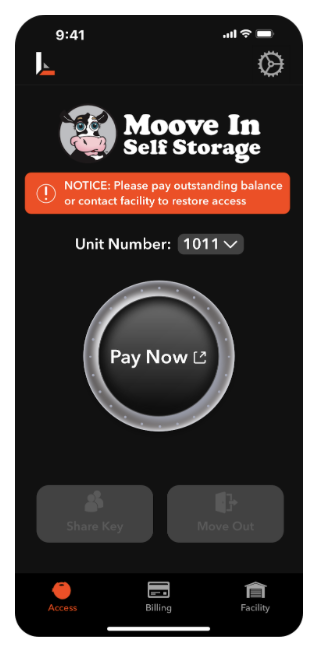
If your access screen displays an orange NOTICE banner, then the facility's records indicate that there is a past due balance for your unit that requires payment before access can be restored. Clicking the Pay Now button will load the website where you can sign in and pay your balance. Once you've paid and your account becomes current, your access screen will allow you to use your lock again.
If you are seeing this screen and believe it is by error, please contact the facility to confirm the status of your account with them. If you have multiple units, you can still use the unit number dropdown to toggle between them. Please note that it is possible to have lost access to some units and not others depending on your payment schedules.
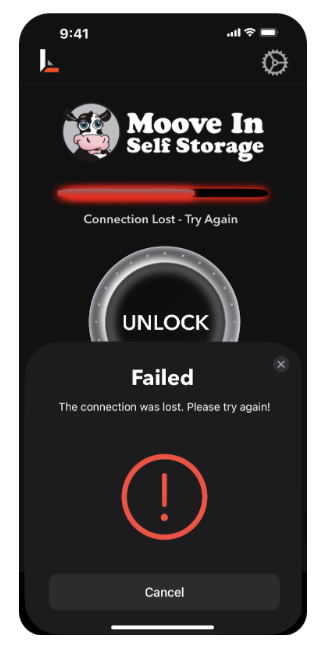
Be sure to keep your phone still while the progress bar is filling. If you move your phone away too early, you may see a failed scan, and you'll need to try again.
Scanning time may vary by phone model and case thickness. While removing your phone case is not required to use the lock, doing so may improve scanning time.
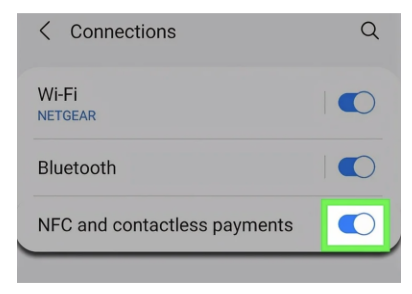
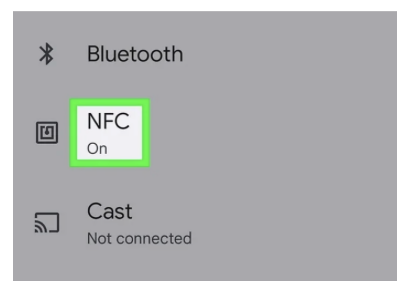
If you are using an Android phone and are unable to scan the lock at all, please ensure that NFC is turned on by navigating to your phone's Settings and searching for NFC. Alternatively, you can navigate to the NFC toggle in settings.
For Samsung phones: Settings > Connections > NFC and contactless payments, turn ON.
For Google phones: Settings > Connected devices > Connection preferences > NFC, turn ON.
Alternatively, simply search NFC in settings.
The ideal NFC detection area varies by device. The on-screen guidance will show you how to align your specific device against the lock.
For iPhones, align the white dot inside of the blue circle to the center of the lock, making sure your phone stays still and directly against the lock.
For Android phones, align the yellow circle over the center of the lock, making sure your phone stays still and directly against the lock.